- Home
- Products
- Bait Boat
- Standard Bait Boat (Urban camo) Bait Boat BT2 (Camo) Bait Boat BT3 (Green) Baitboat Bag 16 battery pack Handset case Handset V3 Handset V2 USBCHARGER 8 battery pack
- Sonar
- Integrated Sonar BaitBoat (BT7) Castable sonar (BT12) Mount sonar (BT5) Build-in Sonar kit (BT6) Integrated Sonar Bait Boat (BT8 Camo) WiFi extender (BT4) Phone & controller holder (BT10) Pad & controller tri-stand (BT11)
- Bite Alarm
- K15/R15 Bite alarm set NK9S Bite alarm NS9pro Bite alarm Smart Bivvy Light Ultra K16 Anti-theft alarm NTH9S
- Products
- Timeline
- Support
- About us
- Login

 (1).png)
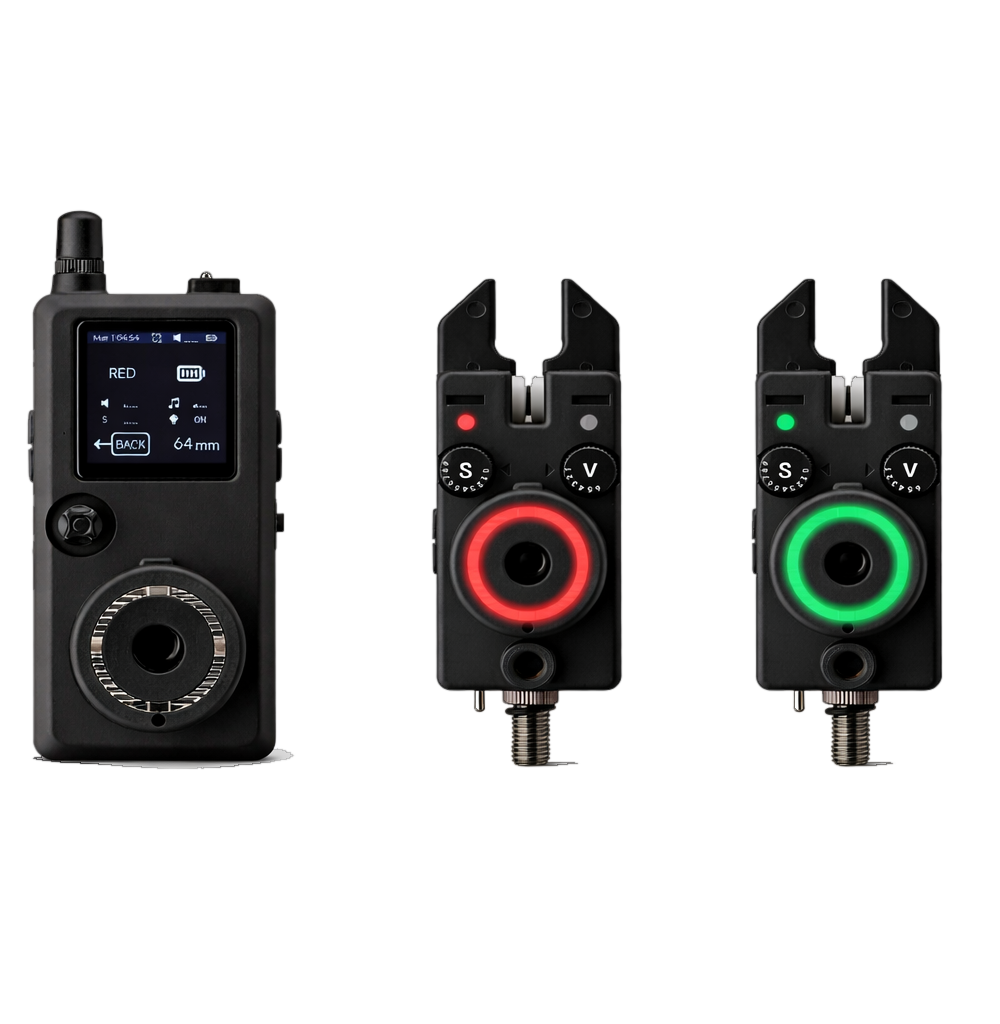
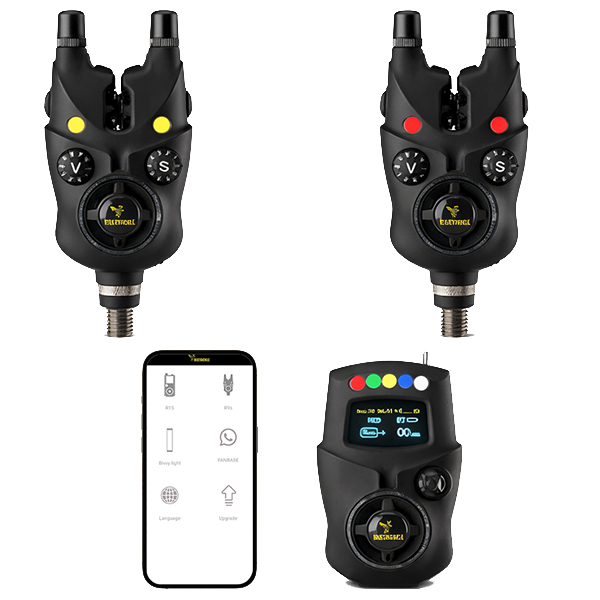
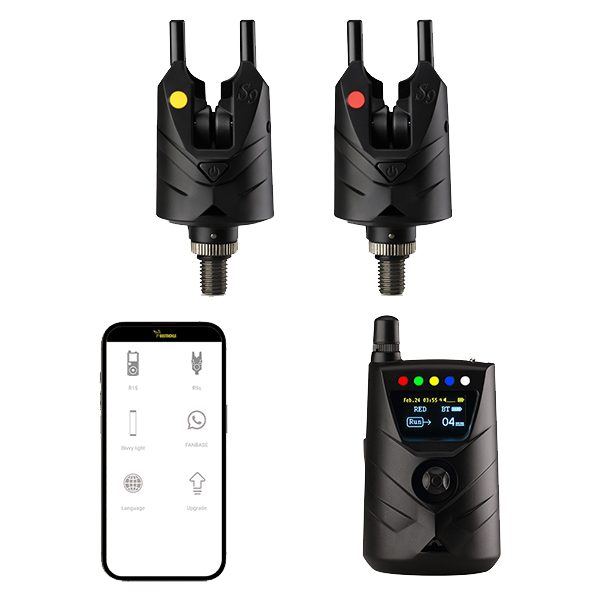
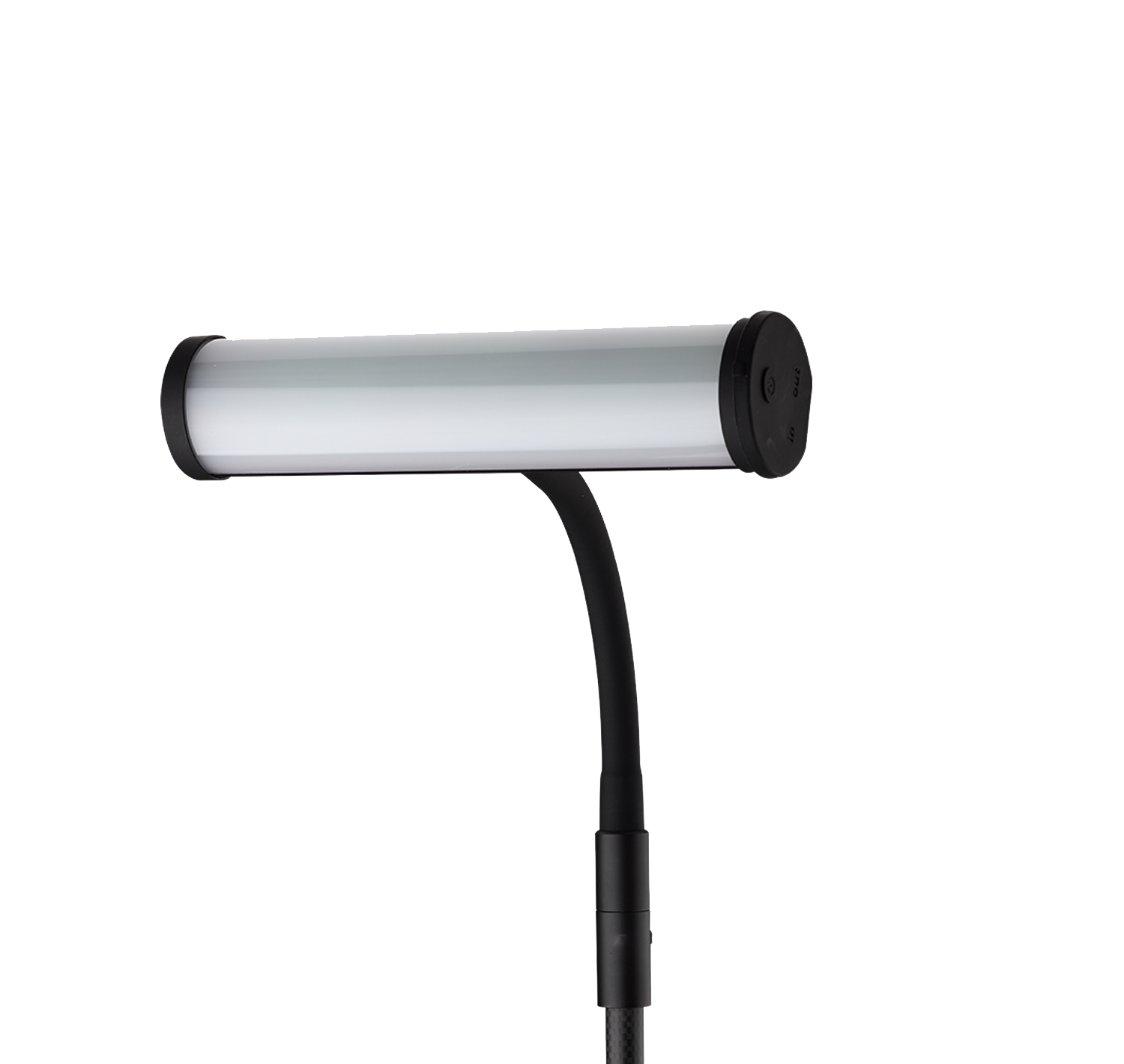
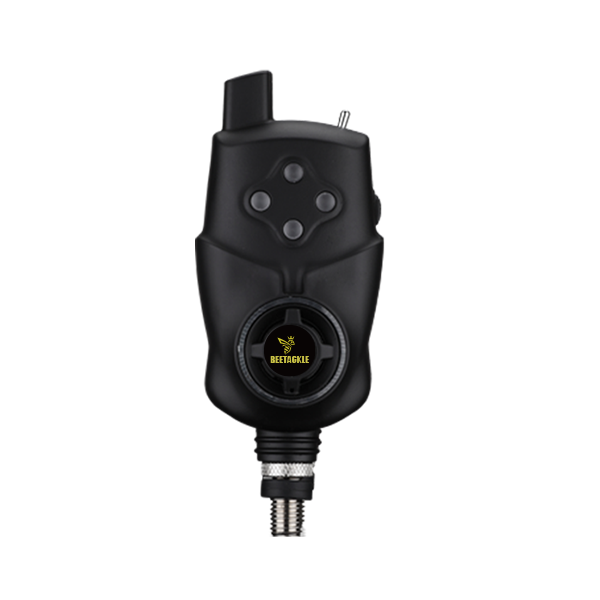
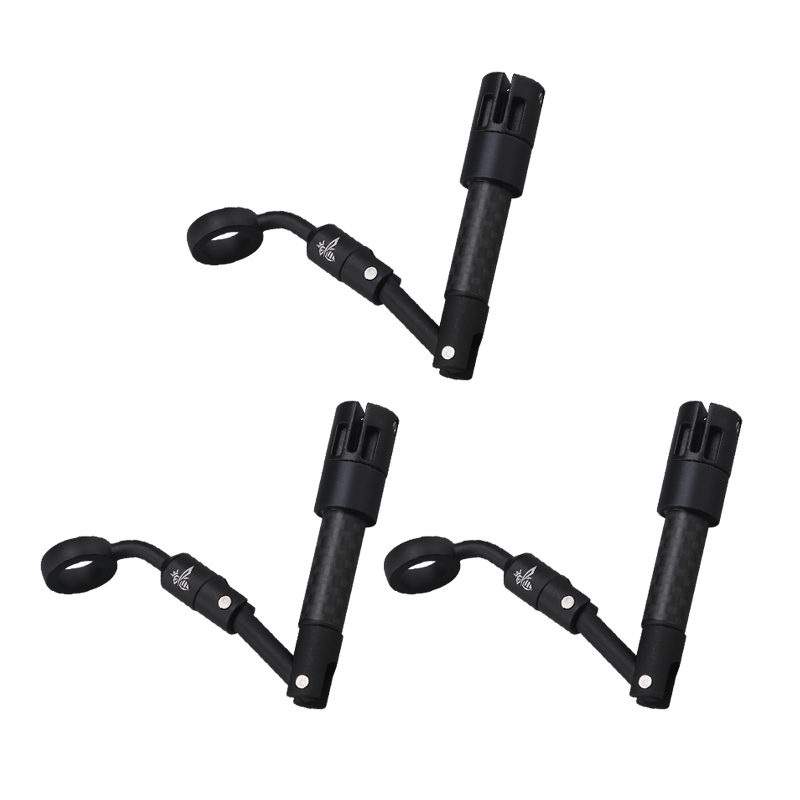
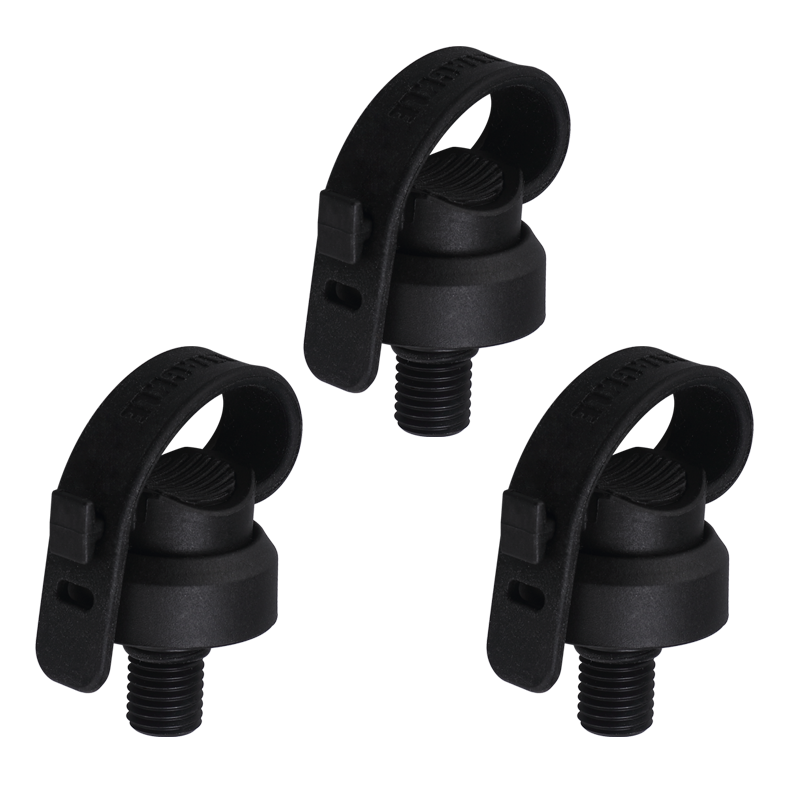
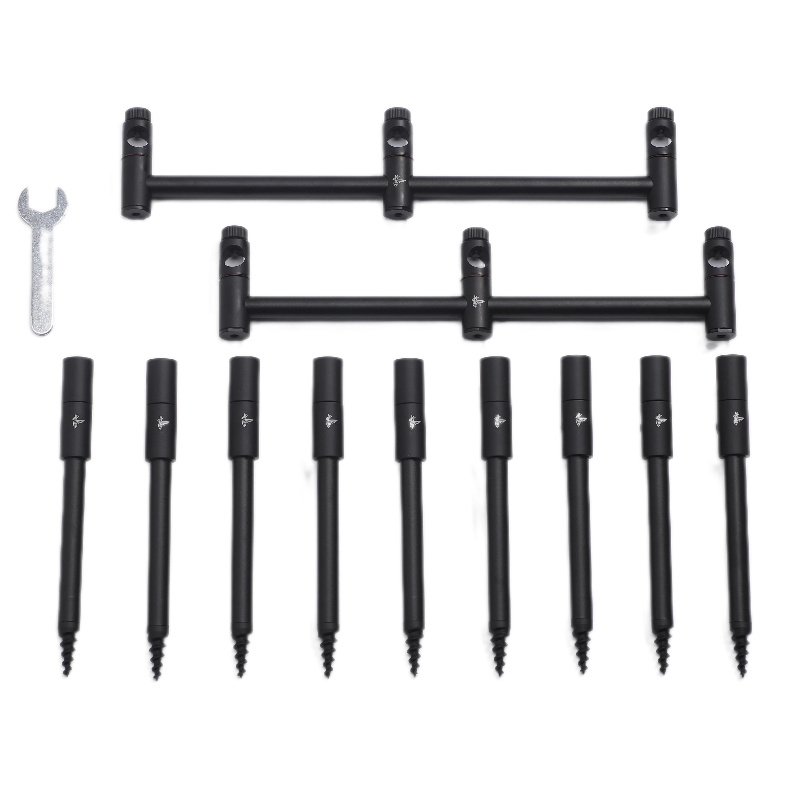




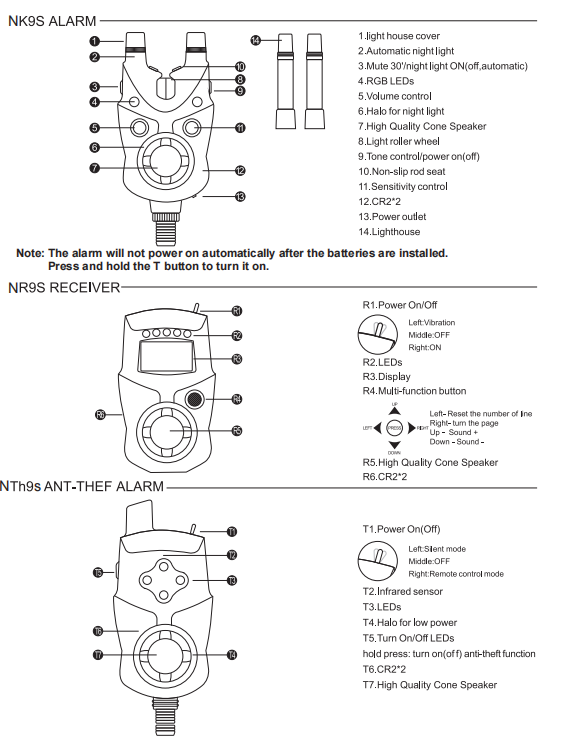
BEETACKLE NK9S Bite Alarm
Overview
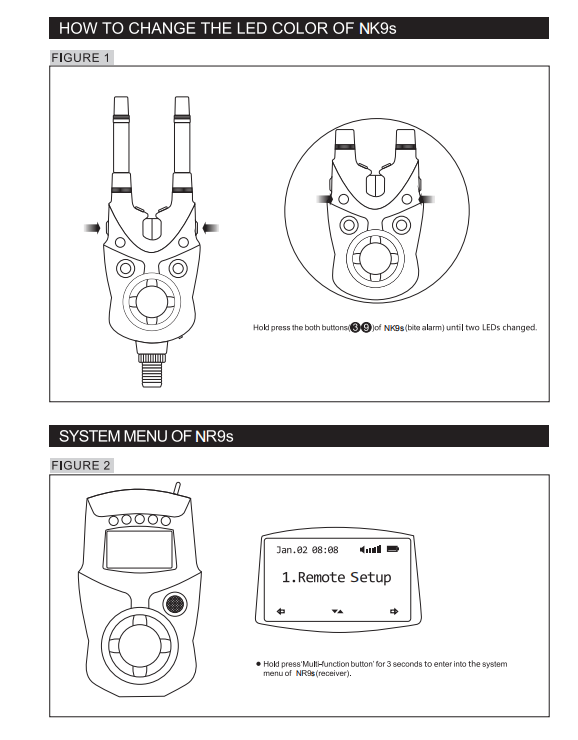
HOW TO REGISTER BITE ALARMS WITH RECEIVER
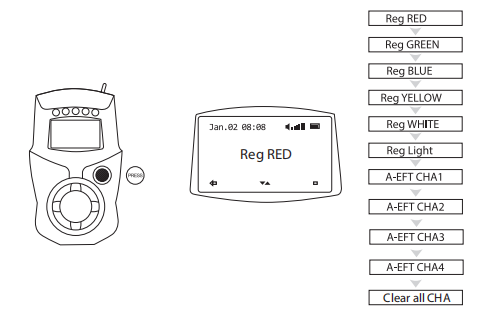
1. Press and hold the 'multifunction button' to enter the system menu of NR9s receiver.
2. Scroll down to select the 'register alarm' menu.
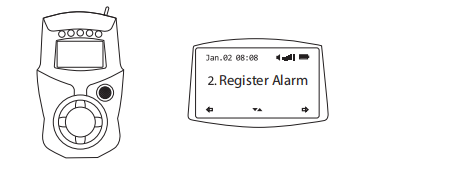
3. Select the colour you want to register.
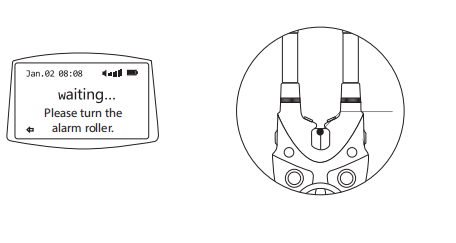
4. Turn the roller wheel of NK9s bite alarm.
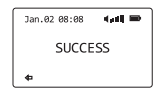
5. Registration was successful when the display shows 'Reg SUCCESS'.
Note: The colour of the alarm will change according to the registered colour.
HOW TO REGISTER ANTI-THEFT ALARM NTH9s
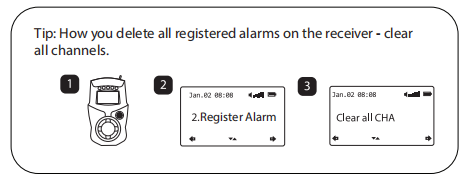
1. Press and hold the 'multifunction button' to enter the system menu of NR9s receiver.
2. Scroll down to select the 'Register Alarm' menu.
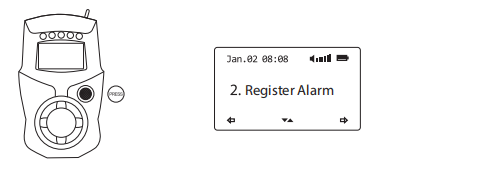
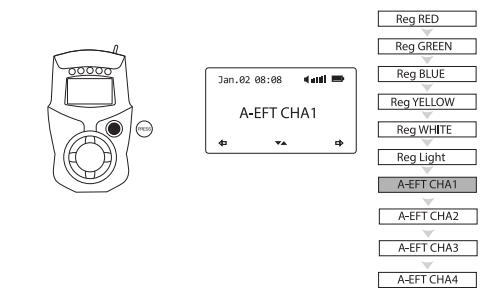
3. Choose one of the A-EFT channels (A-EFT CHA1, A-EFT CHA2, A-EFT CHA3, A-EFT CHA4). We recommend to start with A-EFT CHA1.
Press the button down to select the channel.
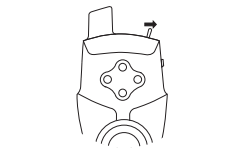
4. Turn on the NTH9s Anti-Theft Alarm.
5. Press the right button on the NTH9s twice.
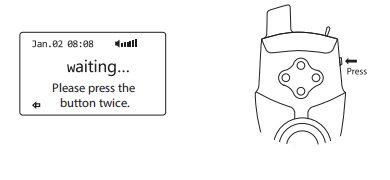
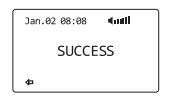
6. Registration was successful when the display shows 'SUCCESS'.
HOW TO REMOTE CONTROL FUNCTIONS OF NK9s/NTH9s via NR9s
1. Press and hold the 'multifunction button' to enter the system menu of NR9s receiver.
2. Scroll down to select the 'Remote Setup' menu.
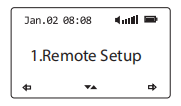
3. Scroll up and down to select the device you want to remote control.
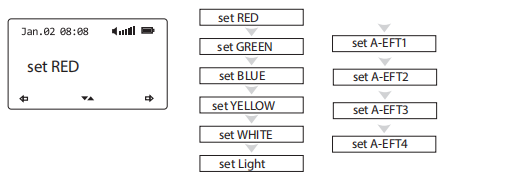
4. Up and down to select the function, confirm with the multifunction knob and then up and down again to set the values
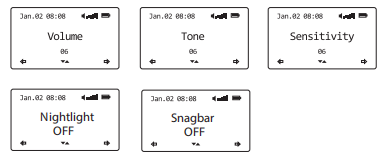
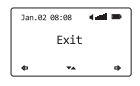
5. Choose ‘Exit’ menu to return main menu.
DROP BACK
1. Press and hold the 'multifunction button' to enter the system menu of NR9S receiver.
2. Scroll down to select the 'Receiver Setup' menu.
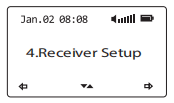
3. Scroll up and down to switch the dropback on/off.
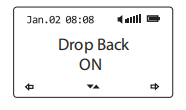
Note: After turning the dropback function on and off, the alarm must be registered again.
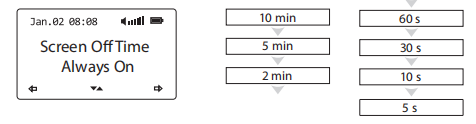
SCREEN OFF TIME
1. Press and hold the 'multifunction button' to enter the system menu of NR9S receiver.
2. Scroll down to select the 'Receiver Setup' menu.
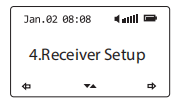
3. Scroll up and down to set the screen switch-off time.
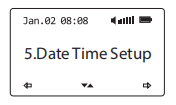
1. Press and hold the 'multifunction button' to enter the system menu of NR9S receiver.
2. Scroll down to select the 'Date time set' menu and confirm by pressing the button down to enter the menu.
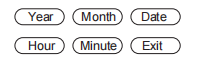
3. Left/right to choose Year/Month/Date/Hour/Minute/Exit, up/down to set the value.
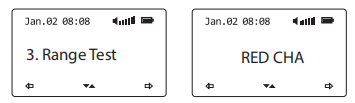
RANGE TEST
The Range test function does not test the maximum range of the bite alarms to the receiver, but how far the remote-control mode reaches. There is a difference between the range from the bite indicator to the receiver and from the receiver to the bite indicator. The real range of the bite alarms depends on environmental conditions. This range can only be tested manually by turning the roller wheel.
APP SETUP
1. Press and hold the 'multifunction button' to enter the system menu of NR9S receiver.
2. Scroll down to select the 'APP Setup' menu and confirm by pressing the button down to enter the menu.
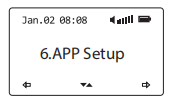
3. Scroll up/down to switch ON/OFF the APP Setup. When turned on, the App connection Icon will be displayed on the screen.
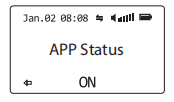
4. Make sure that you have switched on Bluetooth on your smartphone.
5. Open the bite alarm app. The connection is established automatically after a few seconds. Manual pairing is generally not necessary
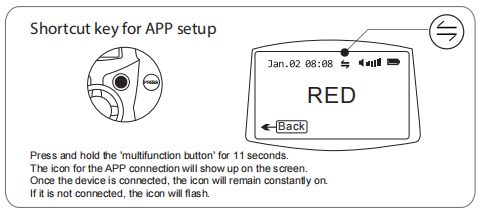
Most smartphones connect automatically without you having to enter a PIN code. If your phone requires a PIN, enter 000000 to try